707.538.7082 Phone 707.538.8849 Fax
|
On Track Medical Billing Services
|
JANUARY 2012 NEWSLETTER Trustworthy, Stress Free, Reliable Practice Management Services
|
Five Common ANSI 5010 Errors:
1. 9 digit zip code. You must have the 9 digit
zip code in
Practice Information
Facilities
Provider(s) information
Referring Provider information
2. Do not use PO Box as an address.
You will want the physical location in the
following
Practice Information
Provider(s) information
Referring Provider information
3. 4 diagnosis codes. Claims will be denied at
the clearinghouse level for more than 4
diagnosis.
4. Code to the highest level of specificity.
5. Your system isn't set up for ANSI 5010 and
your sending 4010 claims.
New ABN Forms for 2012:
2011 Version of Advance Beneficiary Notice of
Non coverage Must Be Used Beginning
January 1, 2012
Providers and suppliers are allowed to use
either the 2008 or 2011 version of the Advance
Beneficiary Notice of Noncoverage (ABN)
through the end of this year. Beginning January
1, 2012, they must begin using the 2011
version. ABNs issued after January 1, 2012,
that are prepared using the 2008 version of the
notice will be considered invalid by Medicare
contractors.
Please share with appropriate staff.
http://www.palmettogba.com/palmetto/providers.
nsf/ls/J1B~8MSJV37116?
opendocument&utm_source=J1BL&utm_camp
aign=J1BLs&utm_medium=email
Setting up Medisoft v17 for ANSI 5010:
McKesson has published a guide for setting up
your Medisoft v17. If you need a copy please
contact me and I will email the guide to you.
You can set up your receiver for Capario
clearinghouse using this guide.
Send me an email and I will get this to you asap!
Your must be on v17 to be ANSI 5010
compliant.
Medisoft Clinical EMR: Medisoft Clinical is
the new EMR and Practice Management all in
one product. If your office is preparing for
government mandated EMR, please remember
McKesson has an EMR system that ties in with
Medisoft and we can arrange a demo of the
product. We estimate it will take 3 months to
make a transition to EMR system, allow your
practice time to make the smooth transition.
We want to help you and we can help you meet
“meaningful use” requirements in the process.
Technical Support:
OTMBS offers 24/7 technical support. After
hours and weekend support send an email to
vmulligan1@aol.com or call 707.538.7082. We
will get back with you as soon as possible to
arrange an appointment to handle your
emergency issues.
OTMBS on Facebook:
We now on Facebook, On Track Medical Billing
Services “Like” and you will see other specials
and comments.


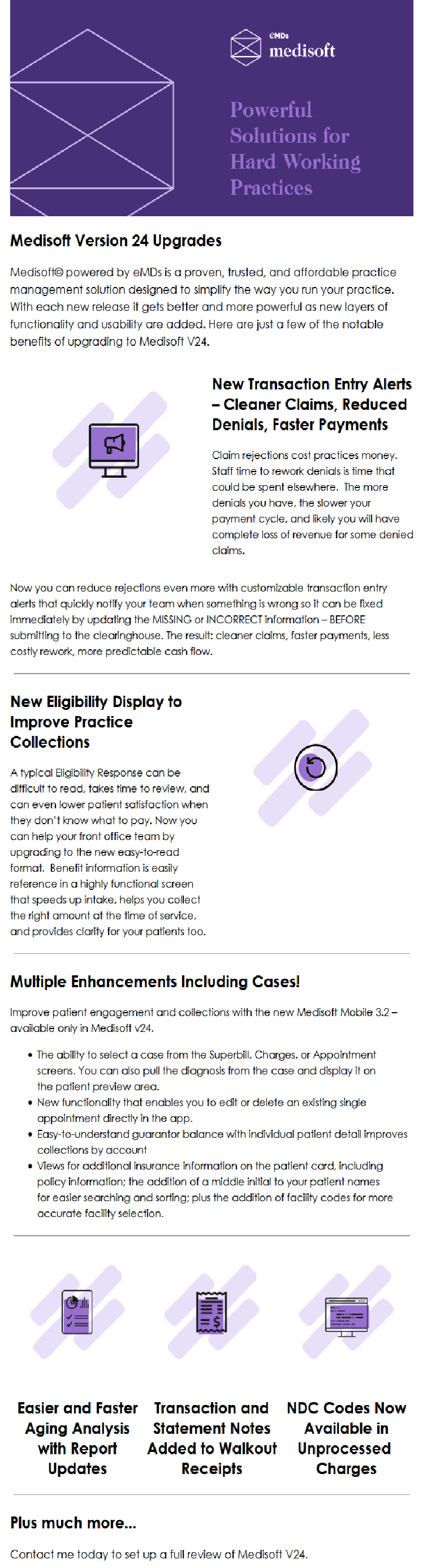
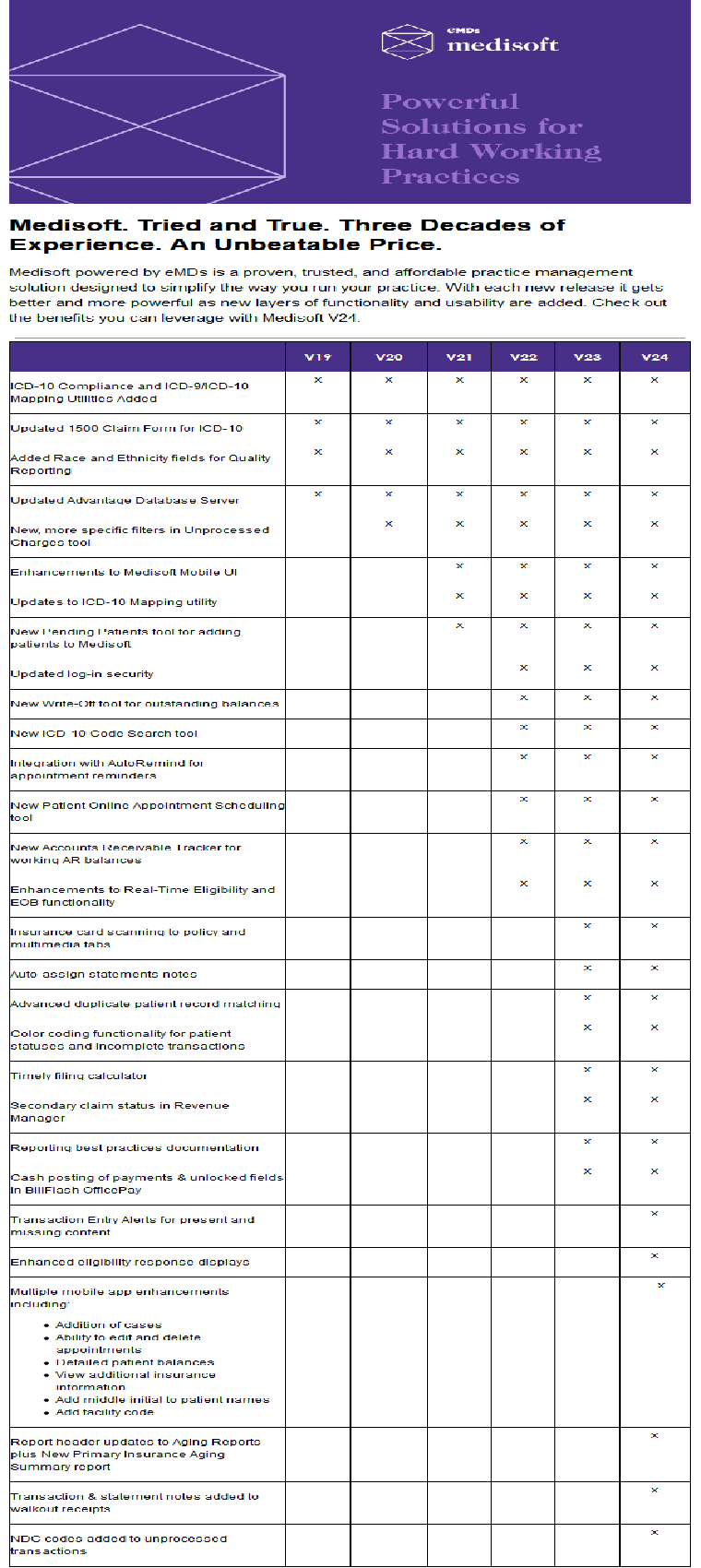
Are you ready for a Accounting Software and EMR system that work together. McKesson announces one of it's latest products to fit your growing practice needs. Medisoft Clinical. Click here to view our brochure. Call today to schedule a demo.
Medisoft Clinical
|
Backing up your data :
Please do not use anything other than the instructions below to
back up your system
If there is more than one practice, open each practice and back
them up separately.
1. Go to File and select Backup Data.
2. The Backup Warning window appears as a reminder to have all
users in the Practice and/or Communications Manager exit from
the program before continuing. Click OK.
3. When the Backup window opens, enter the name and path of
the directory in the Destination File Path and Name field. In the
example below, the H: Drive was specified for the Destination File
Path, and the backup file was named Tuesday. This was
accomplished by simply typing in H:\Tuesday. Medisoft
automatically enters the file type MBK at the end of the Destination
File Path and Name. If you do not enter a name, the current date
will be used as the backup name. If you are not sure of the
complete path for the backup, click Find to browse to the directory.
When the Find button is clicked, the Browse for Folder window
appears, allowing you to select a different Hard Drive, CD Drive,
Zip Drive, or another computer on your network. Once a
destination has been selected, click OK. You will be back in the
Destination File Path and Name field (above) where you will enter a
name for the backup.
4. If you decide on protecting the backups with a password, enter it
in the Password field. FYI: The Existing Backup Files section will list
all of the backups located in the Destination File Path. Also, the
Source Path field lists where the backup data is emanating from.
Once a Destination File Path and Name have been selected, click
on Start Backup. Note: The Start Backup and Close buttons will
change their appearance once the backup has begun. The Start
Backup button becomes disabled, and the Close button converts
to an Abort button, allowing you to abort the backup if necessary.
During the Backup process, the Backup Progress and File
Progress bars activate, indicating the progress of the Backup.
5. When the Backup has completed, click OK on the Information
window.